![CoCreate-Logo_Black-RGB-1.png]](https://faq.cocreate.ink/hs-fs/hubfs/CoCreate-Logo_Black-RGB-1.png?height=40&name=CoCreate-Logo_Black-RGB-1.png)
Messages Inbox
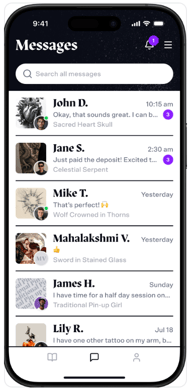
When you have a new message, the conversation moves to the top of your inbox and displays a purple badge showing the number of unread messages.
Where Can I Access Conversations?
You can access conversations from:
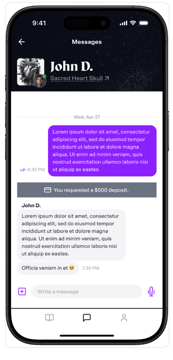
- Booking Requests: Tap the speech bubble icon within your client’s form to open the chat
- Messages Inbox: Navigate to your inbox (speech bubble icon) to view all conversations
What Can I Send in Messages?
You can send:
- Text messages
- Photos
- Videos
- Audio/voice messages
Message Actions
Long-press any message to:
- Edit any message you've sent
- Copy message text
- Delete messages you've sent (removes for everyone)
- Reply to specific messages
- React with an emoji
Note: Deleted messages can't undo email, SMS, or push notifications already sent.
How Do I Edit a Message?
- Long-press the message
- Select "Edit"
- Re-type your message
- Tap "Save"
Edited messages are marked as "(edited)" so everyone can see.
How Do I Send a Voice Message?
- Tap the microphone icon (bottom right corner)
- Start recording
- Stop the recording
- Play it back to review (optional)
- Send or cancel
Viewing the Booking Request
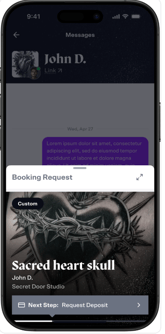
Need to reference the booking details during a conversation? Tap the Booking Request title at the top of the conversation to view a pop up that shows:
- Full original booking details
- Next steps
- Payment status
The sheet is scrollable and can be expanded to full screen without losing your place in the conversation.
System Messages
When actions are taken—like requesting or paying a deposit—a system message appears in the chat to keep everyone informed. These messages are read-only.