![CoCreate-Logo_Black-RGB-1.png]](https://faq.cocreate.ink/hs-fs/hubfs/CoCreate-Logo_Black-RGB-1.png?height=40&name=CoCreate-Logo_Black-RGB-1.png)
What's a Primary Location?
Your first location is automatically set as your Primary Location. This displays on your profile even when your books are closed, so clients always know where you primarily work. You can change your Primary Location anytime.
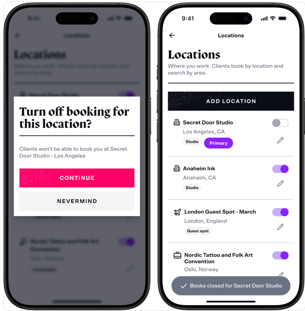
What Does toggling a location "Open/On" Mean?
Locations toggled "Open/On" are available for clients to book. Only Open locations appear as options when clients submit booking requests.
How Many Locations Can I Add?
- Up to 10 locations.
Steps to Add a Location:
- Sign in to the mobile app or https://www.cocreate.ink/
- Navigate to "Profile" from your main menu
- Tap the menu icon → "Profile" → "Locations"
- Add location details:
- Name: Give your location a name
- Address: Enter a valid street address
- Type: Select Studio, Guest Spot, or Convention
- This helps clients understand the booking context and avoids confusion
- Primary Location: Toggle on if this is your main location (displays first in your location list)
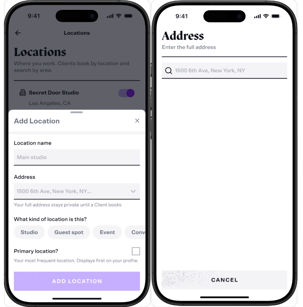
- Click "Save" to add the location to your profile
Managing Your Locations
- Toggle locations "Open" or "Closed" to control which are available for booking. Your Primary Location always displays on your profile regardless of Open/Closed status.